Claimant (Member) Portal User Guide
Aafiya Managed Care Platform — v1.2.0
Overview
The Claimant Portal (also referred to as the Member Portal) is your self-service web application for tracking claims, managing authorisations, submitting appeals, and communicating with the managed care organisation. Access it at http://localhost:3002 (development) or your organisation's production URL.
Available to: Claimants/members who have an active claim or authorisation record with the managed care organisation.
Getting Started
Login
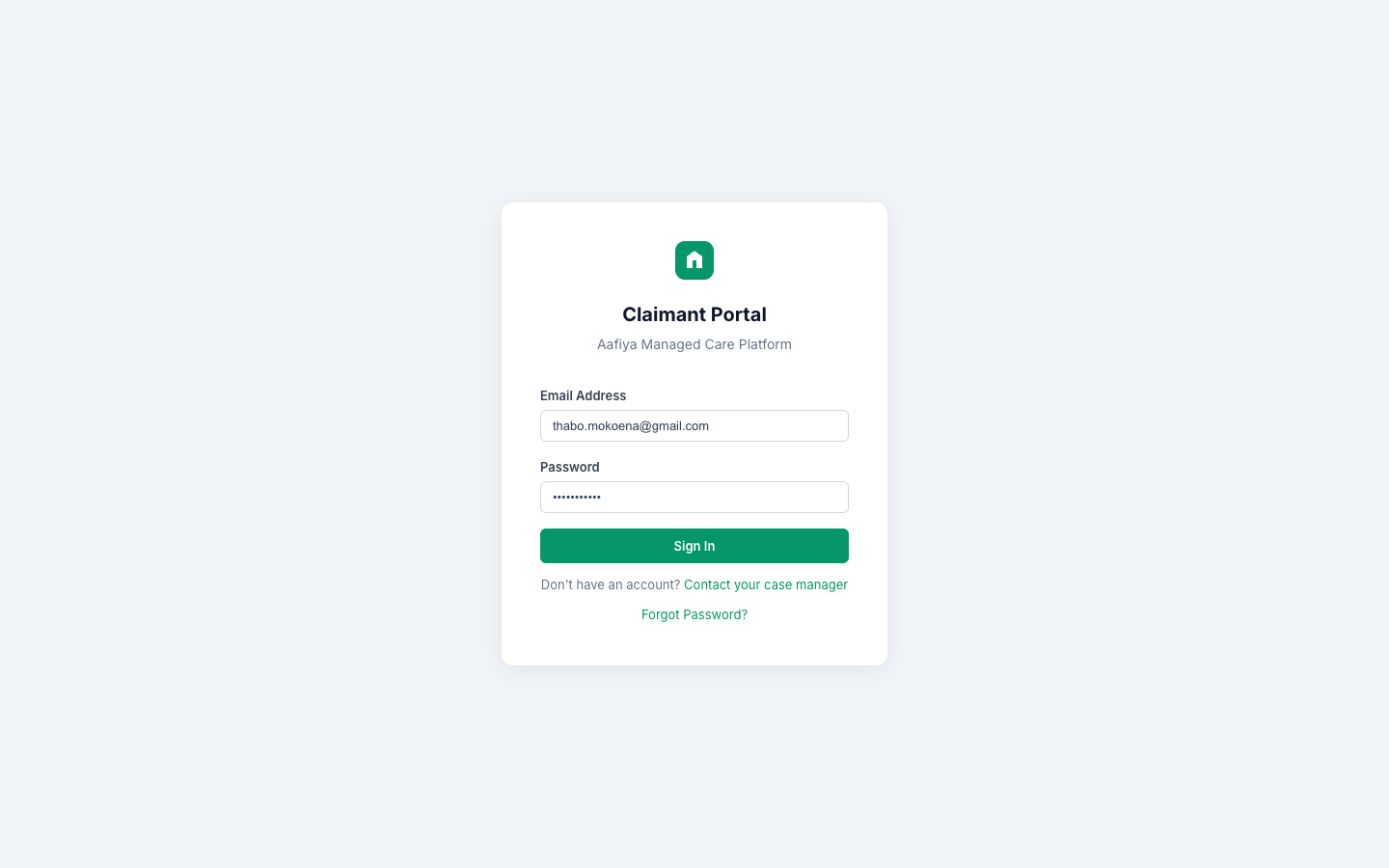
- Navigate to the Claimant Portal URL.
- Enter your registered email address and password.
- Click Sign In.
- If you do not have an account, contact your case manager or the support team to register.
- For forgotten passwords, click Forgot Password.
Portal Layout
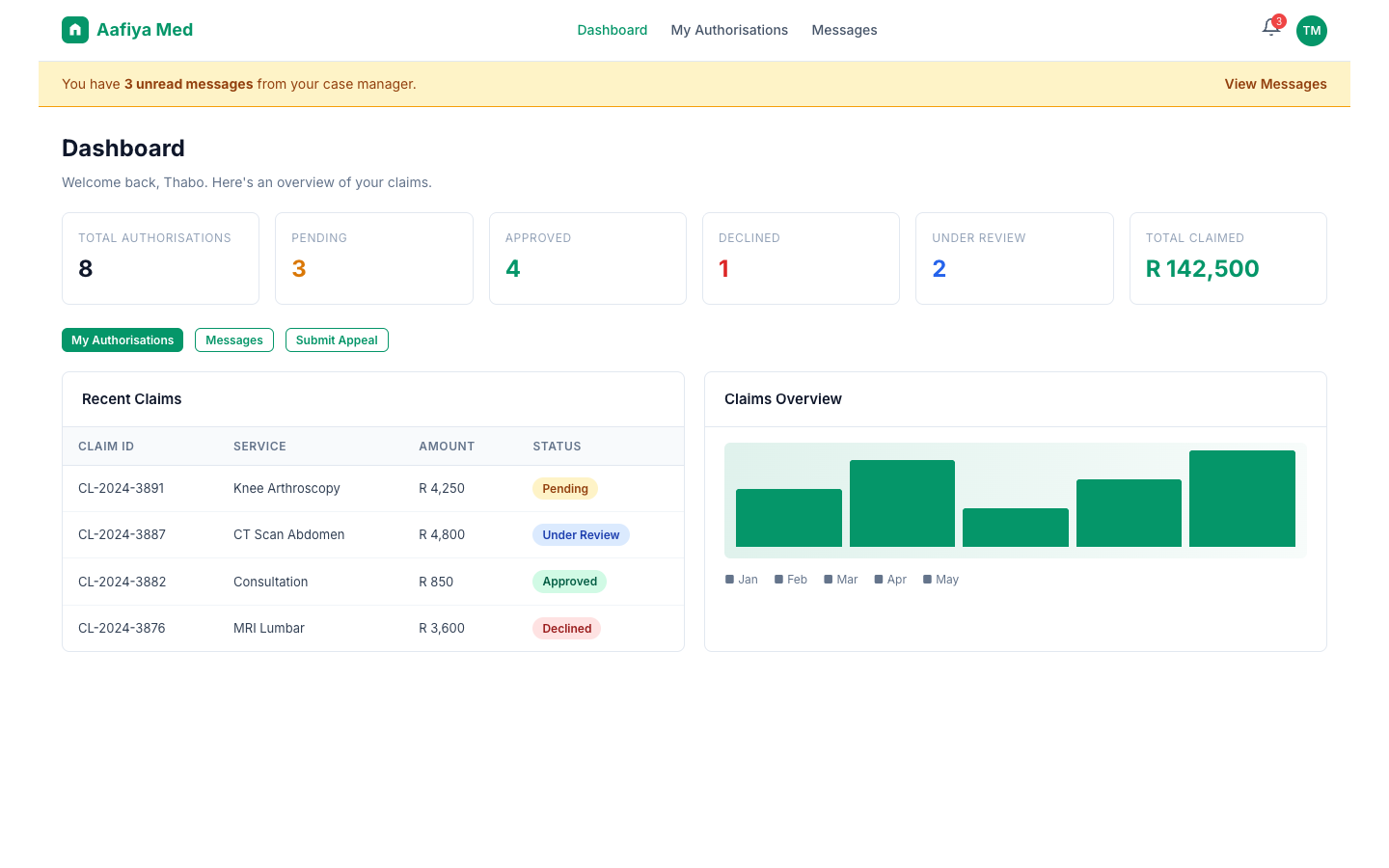
The portal has a clean, member-focused interface: a top bar with Aafiya logo, navigation links, notification bell, and profile menu; and a main content area that displays the active page.
Dashboard
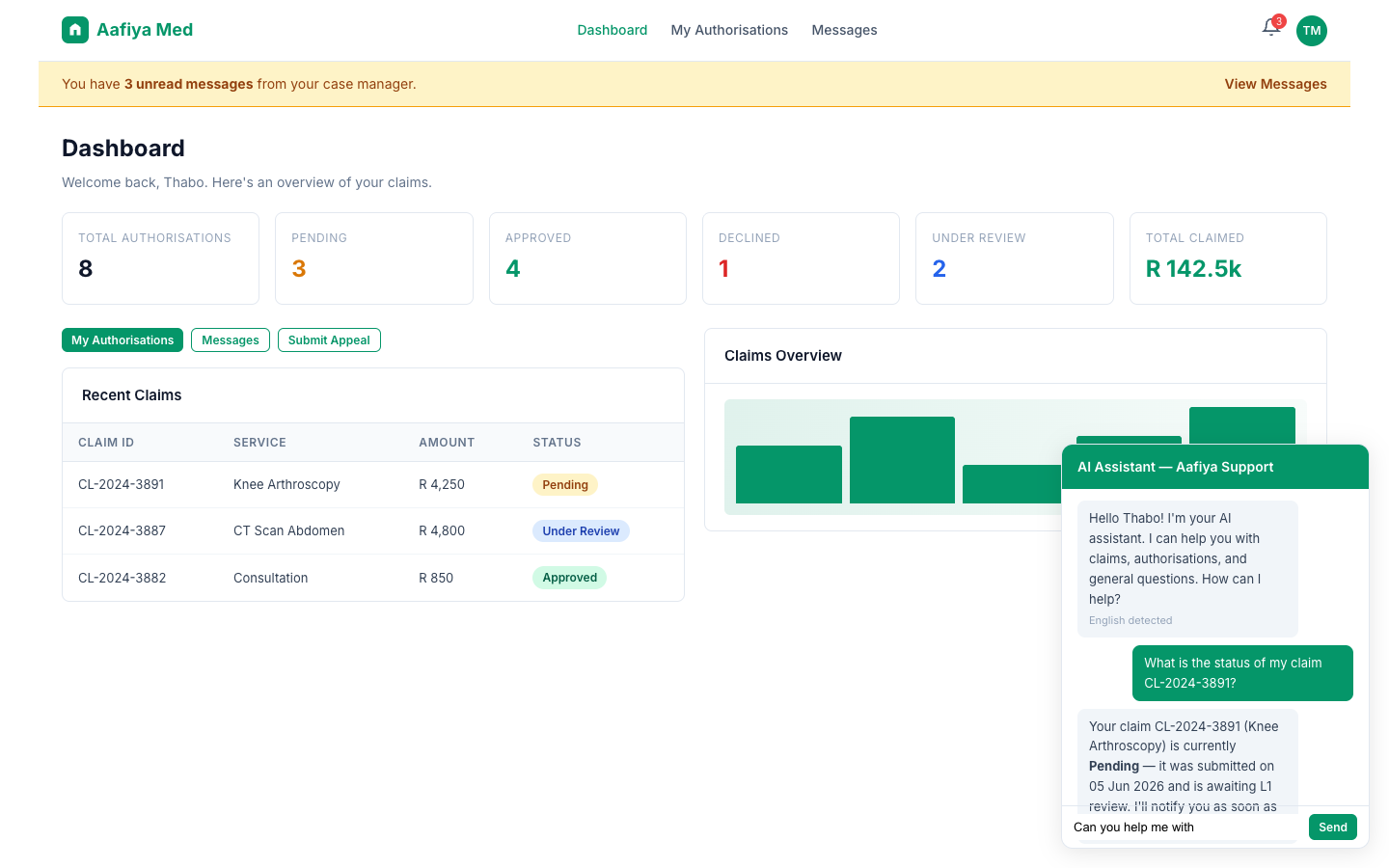
Your personalised dashboard shows alerts for unread messages and status changes, a stats grid with metrics (Total Authorisations, Pending, Approved, Declined, Under Review, Total Claimed), and quick action buttons for My Authorisations, Messages, and Submit Appeal. A chronological list of recent claims with status badges and a claims overview bar chart provide additional visibility.
My Authorisations
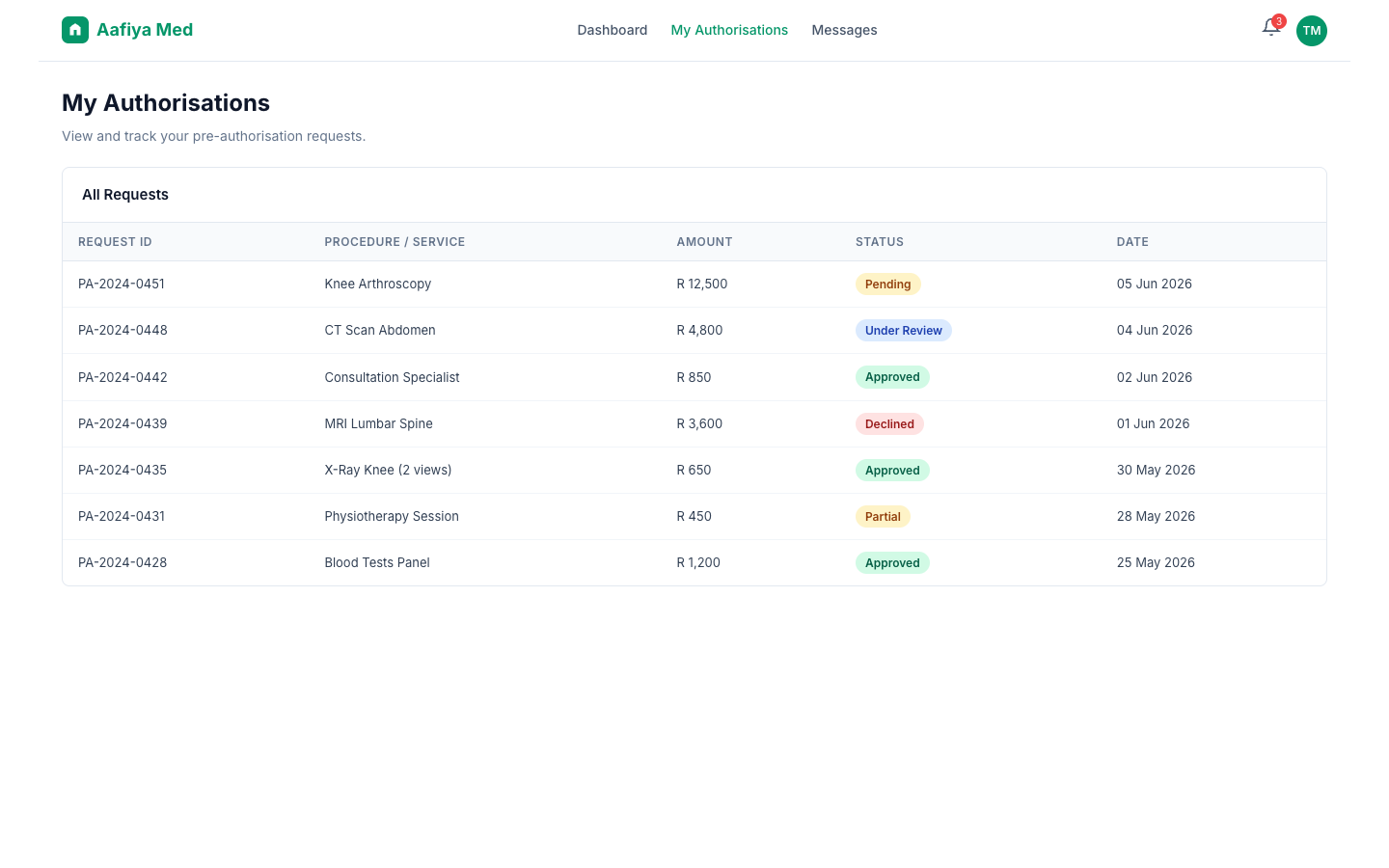
Navigate to My Authorisations from the dashboard or navigation menu. View all your pre-authorisation requests in a table with Request ID, Procedure, Amount, Status (colour-coded), and Date submitted.
Authorisation Statuses
| Status | Meaning |
|---|---|
| Pending | Awaiting initial review |
| Approved | Authorisation granted |
| Declined | Authorisation declined — you can appeal |
| Under Review | Additional review in progress |
| Partial | Partially approved |
Claim Status
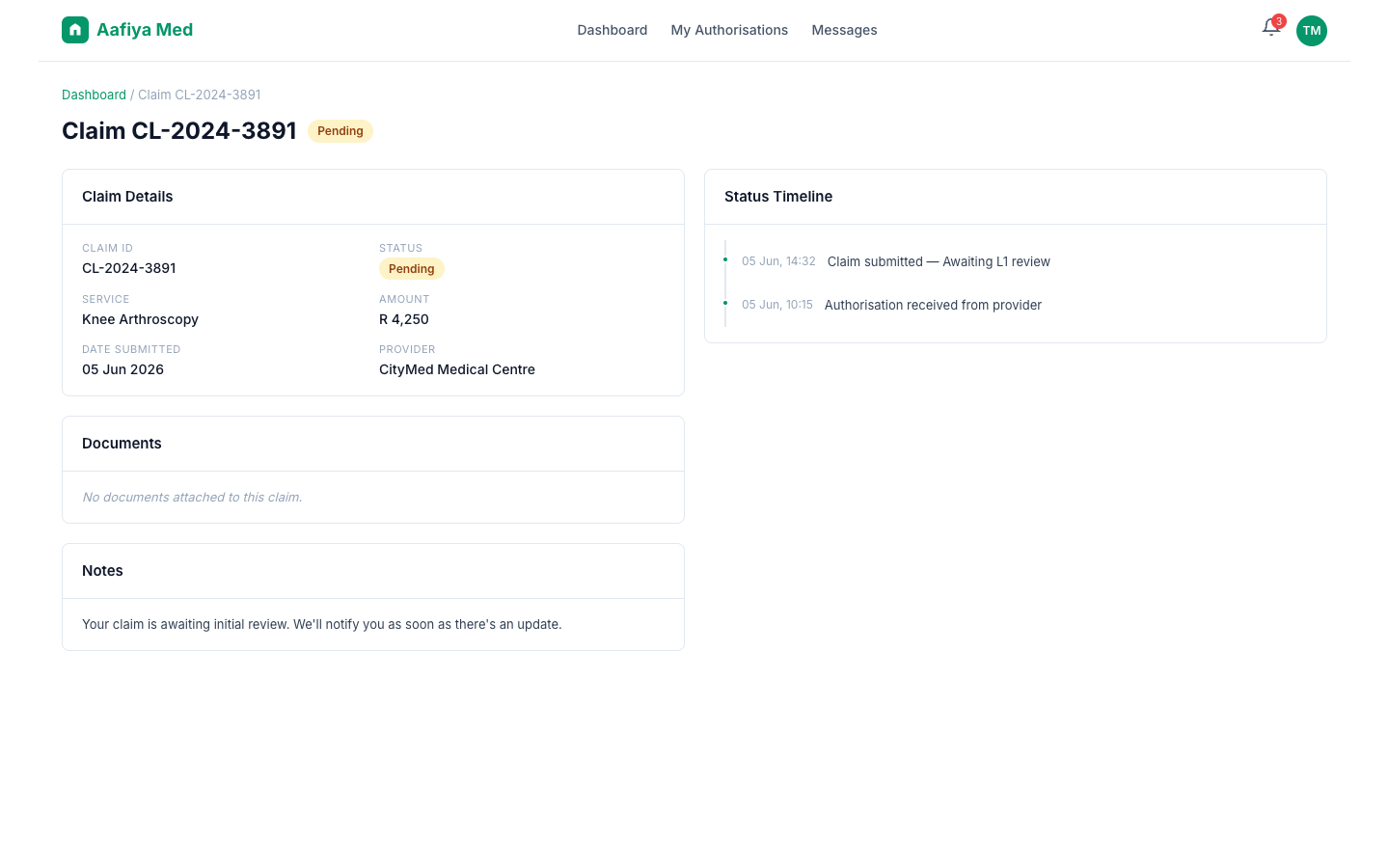
Navigate to a specific claim from the dashboard or authorisations list. The claim status page provides: claim details (ID, service, amount, dates), current status with a prominent badge, a chronological status timeline, attached documents, and case manager notes.
Appealing a Decision
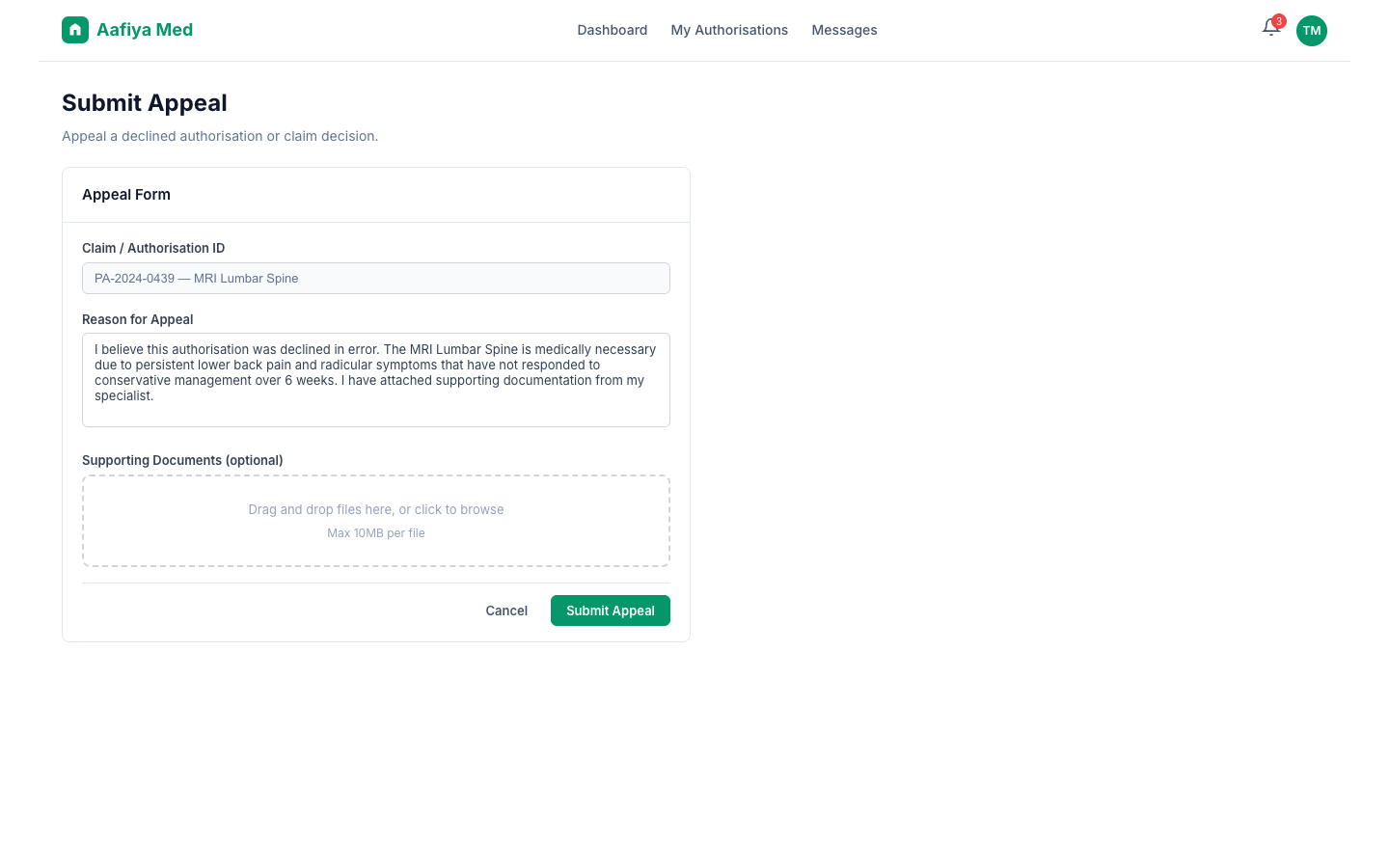
If an authorisation or claim has been declined, you can submit an appeal.
How to Appeal
- From the Dashboard, click Submit Appeal, or navigate to the declined claim and click Appeal.
- Complete the appeal form with the Claim/Authorisation ID, your Reason for Appeal, and optional Supporting Documents (medical reports, documentation).
- Click Submit Appeal.
Your appeal will be reviewed by a senior clinical reviewer (L3). You will be notified of the outcome via the portal and, if configured, via SMS or WhatsApp.
Messaging & AI Chat
The portal includes an AI-powered chat assistant to help you with queries. Available from the chat icon in the bottom-right corner, you can ask questions about your claims, authorisations, or general information. The assistant detects your language (English, Afrikaans, Zulu, Xhosa, etc.) and responds in the same language.
Supported Query Types
- Claim Status — "What is the status of my claim?"
- Authorisation — "When will my authorisation be approved?"
- Appeal — "How do I appeal a decision?"
- General — Other questions
If the AI assistant cannot resolve your query or you request to speak to a person, the conversation will be escalated to a human case manager.
Profile & Settings
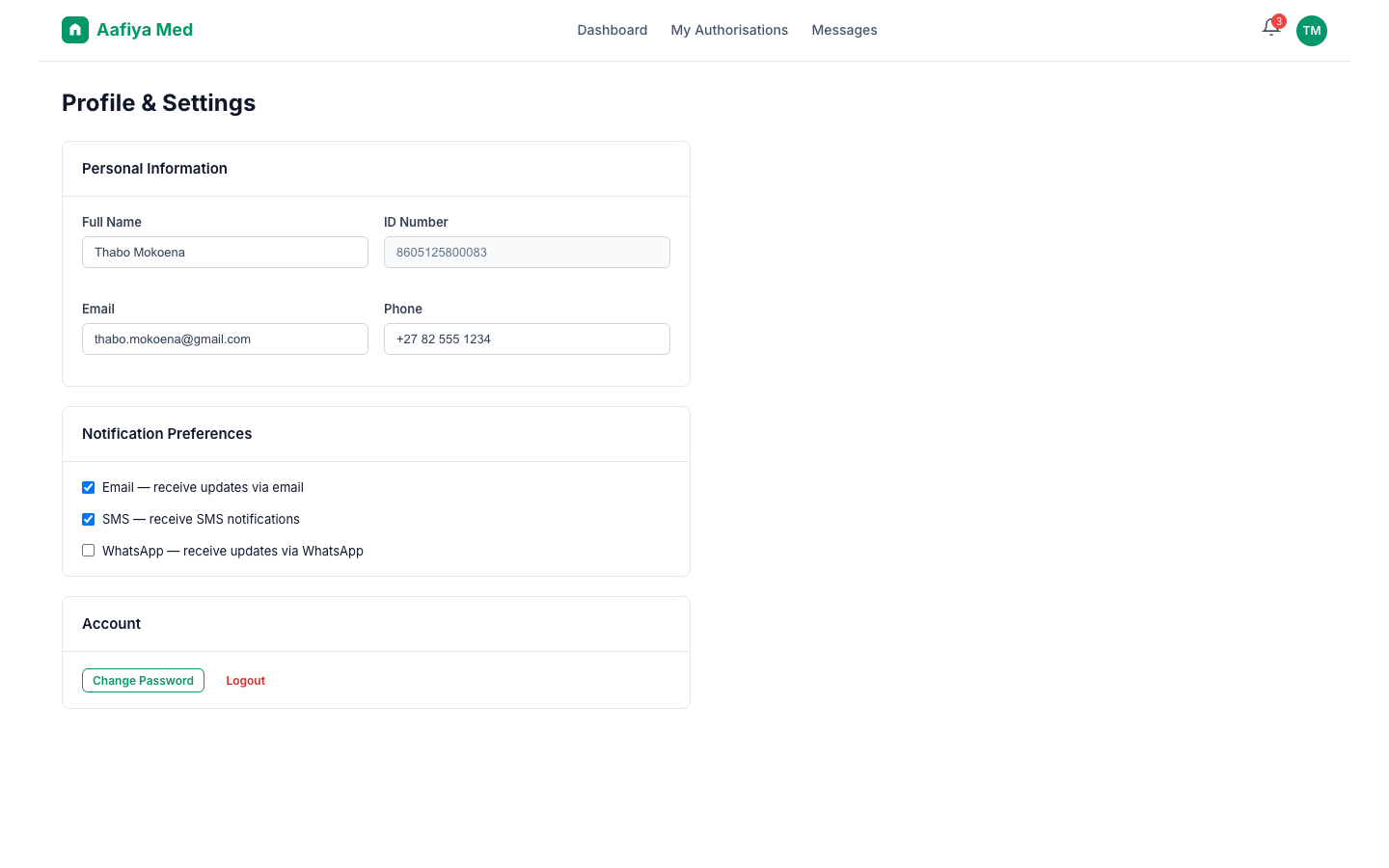
Click your name or avatar in the top-right corner. Your Profile, Notifications (email, SMS, WhatsApp), Account Settings (password update), and Logout are all available from the profile menu.
Troubleshooting
| Issue | Resolution |
|---|---|
| Cannot log in | Check your credentials. Use Forgot Password or contact support. |
| Appeal form not submitting | Ensure you have provided a reason. File size limits apply (max 10MB). |
| Chat not responding | The AI assistant requires an active internet connection. Try refreshing the page. |
| Status information outdated | Reload the page to get the latest information. |
Support
- Email: support@aafiya.app
- Phone: +27-XXX-XXXX
- WhatsApp/SMS: Via the number provided by your case manager
- Hours: 08:00–17:00 SAST, Monday–Friday (chat 24/7)