Mobile App User Guide
Aafiya Managed Care Platform — v1.2.0 — iOS & Android
Overview
The Aafiya mobile app is designed for field case managers who need to manage cases, conduct serious injury assessments, and access case information while on the go. The app supports full offline operation, allowing case managers to work in areas with limited or no connectivity.
Available on: iOS (App Store) and Android (Google Play Store)
Intended users: Field case managers, assessors, and mobile clinical staff
Installation & Setup
Download
- iOS: Download from the Apple App Store (search "Aafiya Managed Care")
- Android: Download from Google Play Store (search "Aafiya Managed Care")
First-Time Setup
- Open the app after installation.
- Log in with your corporate credentials.
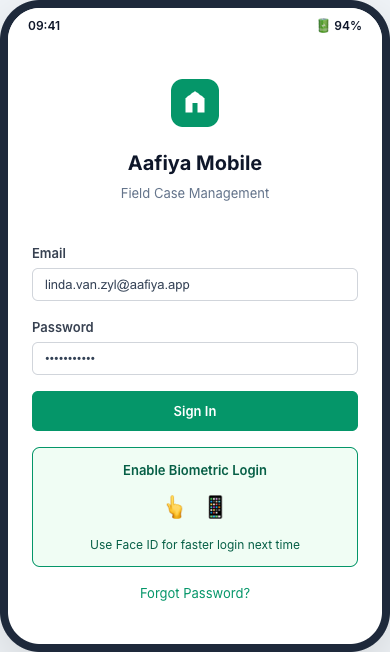
- Optionally enable biometric authentication (Face ID / fingerprint) for quicker access.
Authentication
The login screen accepts your corporate email and password. You can toggle biometric authentication (Touch ID / Face ID) for faster subsequent logins. The app securely stores your session token using encrypted device storage, and tokens are refreshed automatically when they expire.
Case List
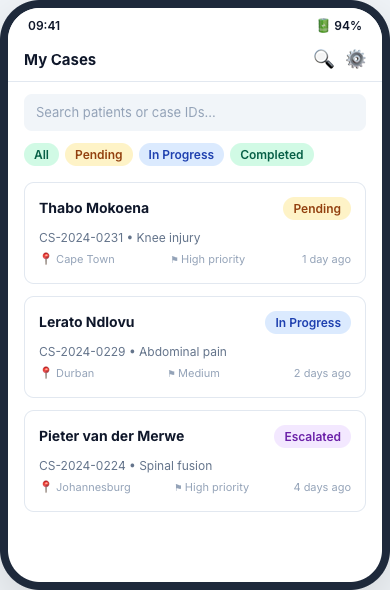
The main screen after login displays a list of your assigned cases. Features include:
- Search — By patient name, case ID, or provider name
- Status Filter — All, Pending, In Progress, Completed
- Sort Options — By Priority, Date, or Location (nearest first)
Each case is displayed as a card showing the patient name and photo, Case ID, status badge, priority indicator, location, days since assignment, and a brief injury description. Tap any card to open the full Case Detail screen.
Case Detail
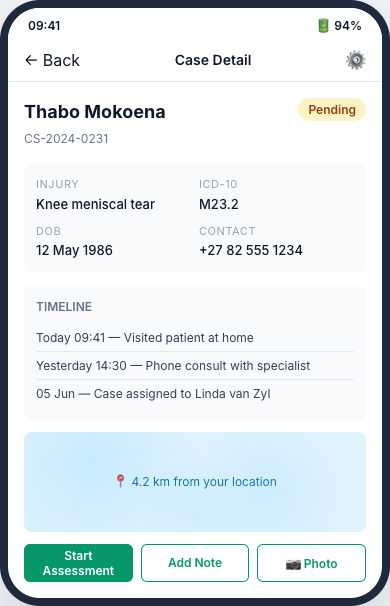
Comprehensive view of a single case including patient information, injury details with ICD-10 codes, a chronological case timeline, uploaded documents and photos, and a geo-location map showing the patient's location and nearby providers.
Available Actions
- Start Assessment — Begin a WPI assessment
- Add Note — Record a field note
- Upload Photo — Capture and upload photos as evidence
- Contact Patient — Initiate a call or message
- Mark Complete — Finalise the case
Assessment (WPI)
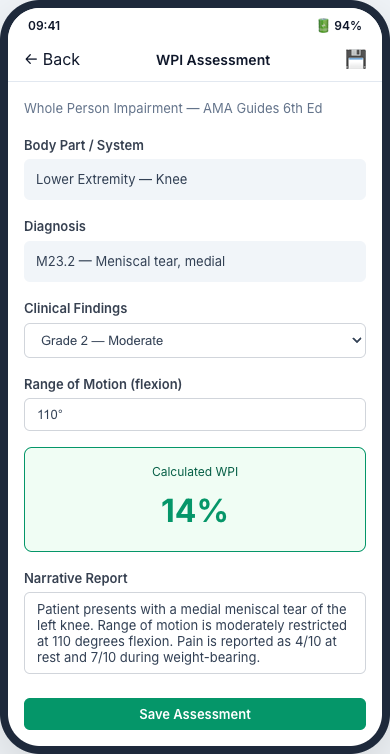
The assessment screen guides field case managers through the serious injury assessment process (Whole Person Impairment calculation per the AMA Guides). It includes injury selection by body part/system, clinical measurements, automatic WPI calculation, and narrative report entry.
Assessments can be completed entirely offline. All entered data is stored locally on the device and queued for sync when connectivity is restored. Photos can also be captured offline.
Geo-Map
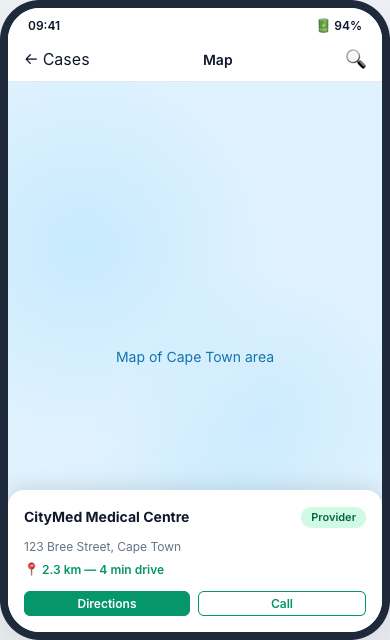
A map view showing the geographic context of your cases. Features include case pins, nearby provider and hospital locations, distance calculation from your current location, and the ability to open directions in Apple Maps or Google Maps for turn-by-turn navigation.
Offline Mode & Sync
The app is designed with an offline-first architecture. All core features work without an internet connection: viewing cached case lists and details, completing WPI assessments, capturing photos and notes, and accessing previously viewed documents.
Syncing
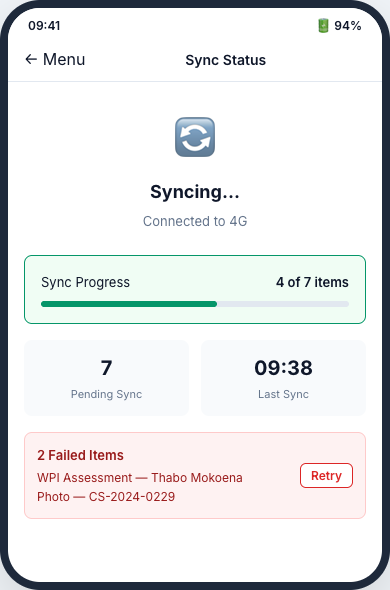
When connectivity is restored, the app automatically syncs pending items (assessments, notes, photos), updates (latest case status changes), and documents. The Sync Status screen shows pending items count, last sync time, real-time progress, and failed items with retry capability.
| Setting | Description |
|---|---|
| Sync Frequency | Auto (background) or Manual Only |
| Retry Policy | Failed items retried up to 5 times with exponential backoff |
| Cache TTL | Case data cached with 1-hour time-to-live |
| Biometric Auth | Enable/disable Face ID or fingerprint login |
Settings
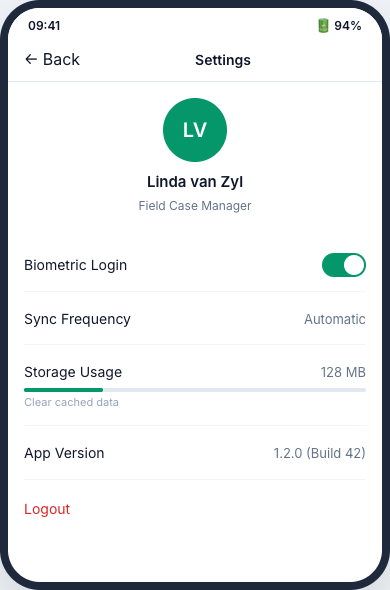
Access the Settings screen from the navigation drawer to manage your profile, biometric authentication, sync frequency, storage usage (view and clear cached data), app version information, and logout.
Troubleshooting
| Issue | Resolution |
|---|---|
| Cannot log in | Check internet connection. Ensure credentials are correct. Fall back to password login. |
| Sync not working | Check internet. Go to Sync screen and tap Retry All. |
| App feels slow | Clear the cache in Settings. Check your device storage. |
| Photos not uploading | Ensure a stable internet connection and tap Sync. |
| Assessment data lost | Always sync before uninstalling the app or clearing app data. |
Support
- Email: mobile-support@aafiya.app
- Phone: +27-XXX-XXXX
- After-hours: Contact the on-call case management supervisor