Provider Portal User Guide
Aafiya Managed Care Platform — v1.2.0
Overview
The Provider Portal is a web application for healthcare providers to submit claims, manage pre-authorisation requests, and track the status of submitted claims. Access it at http://localhost:3001 (development) or your organisation's production URL.
Available to: Healthcare providers, medical practices, hospitals, and allied health professionals registered on the Aafiya platform.
Getting Started
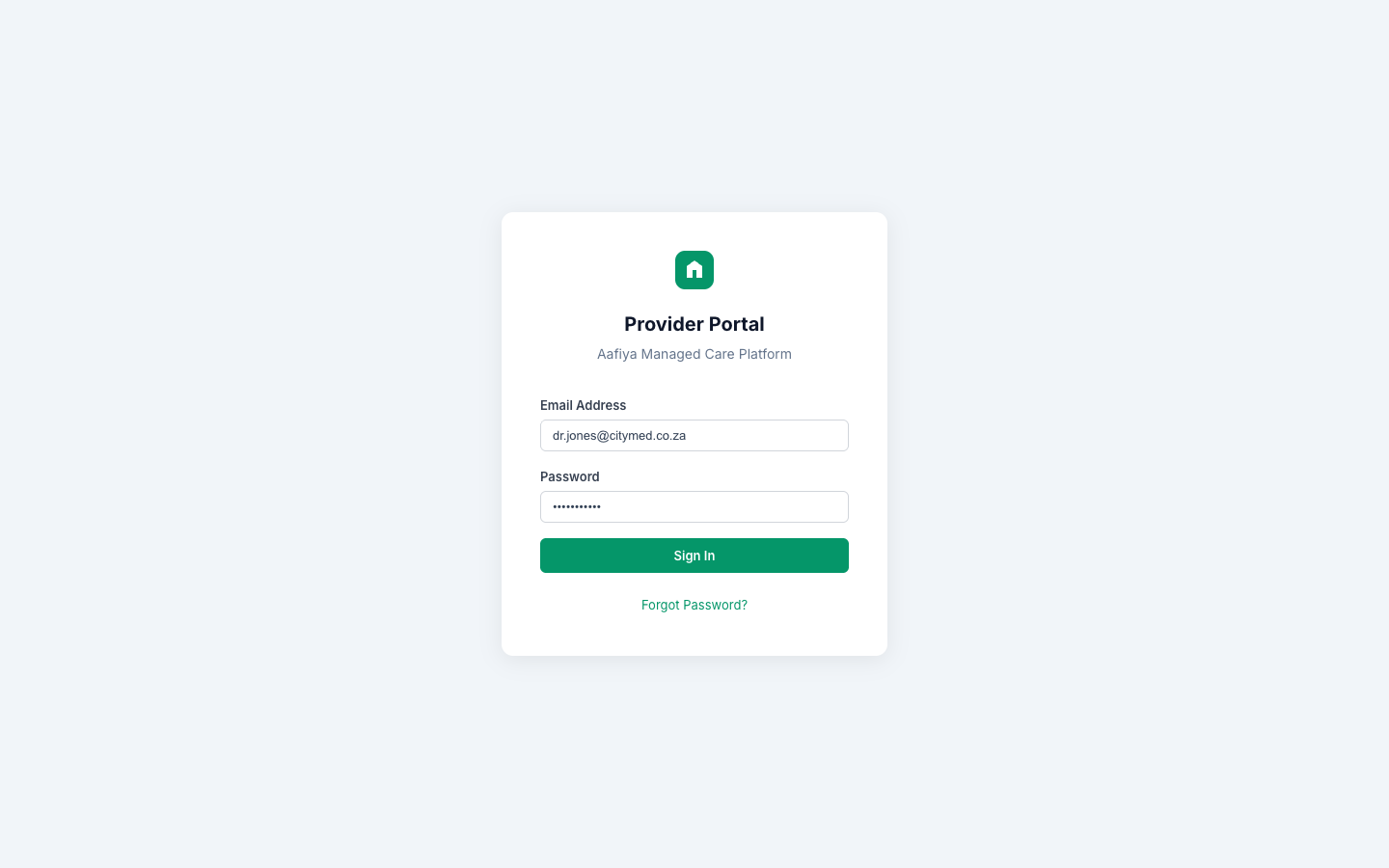
Login
- Navigate to the Provider Portal URL.
- Enter your registered email address and password.
- Click Sign In.
- If you have forgotten your password, click Forgot Password to reset it.
Portal Layout
The portal has a top navigation bar and a main content area:
- Top bar: Aafiya logo on the left, navigation links in the centre, and your profile/account menu on the right.
- Main area: Displays the active screen — Dashboard, Submit Claim, Pre-Authorisations, or Claim Details.
Dashboard
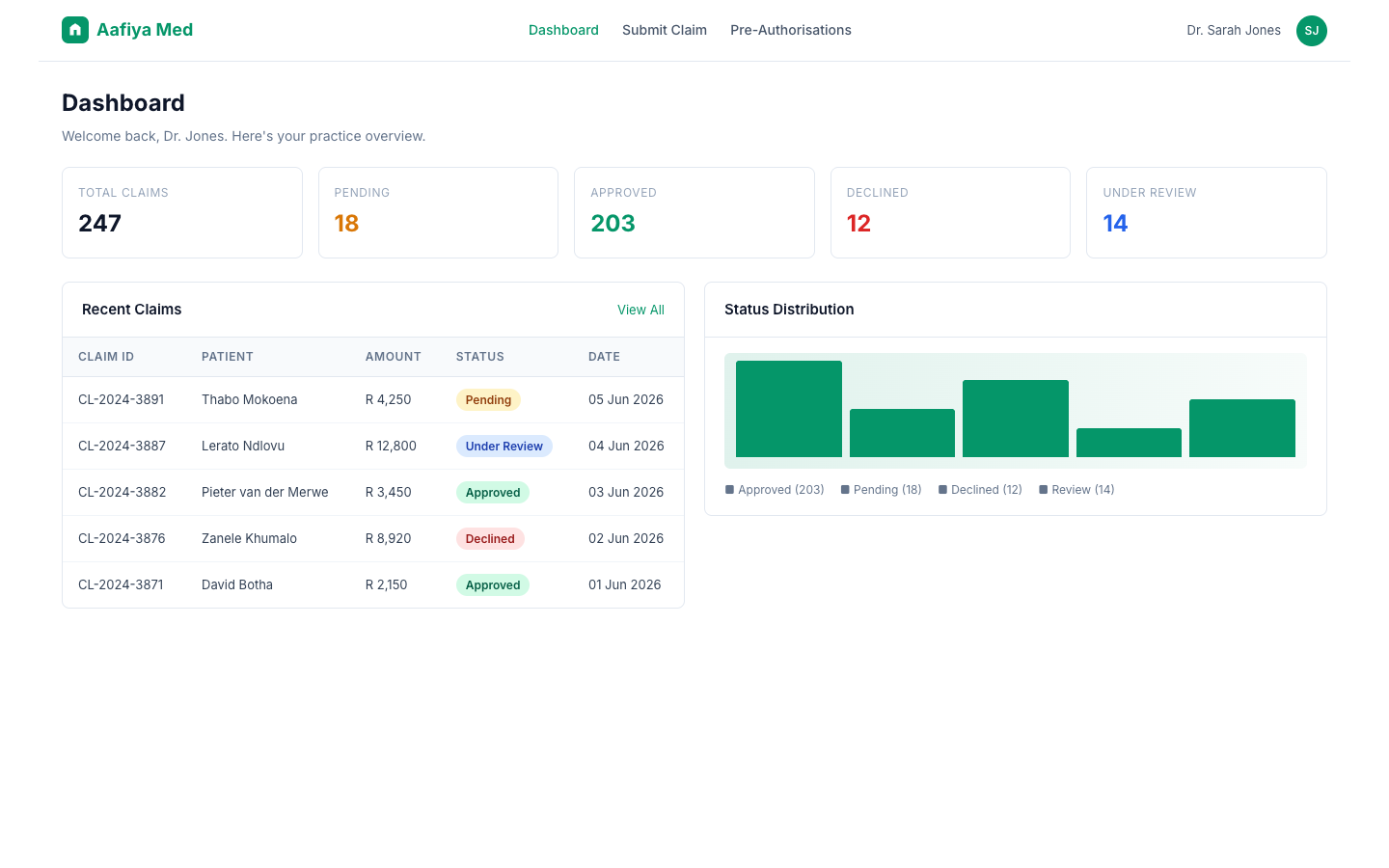
The dashboard is your landing page after login. It shows:
Stats Grid
Key metrics displayed as cards at the top of the page:
| Metric | Description |
|---|---|
| Total Claims | All claims submitted by your practice |
| Pending | Claims awaiting review |
| Approved | Claims that have been approved |
| Declined | Claims that have been declined |
| Under Review | Claims currently being reviewed |
Recent Claims
A list of your most recent claims below the stats grid. Each claim card shows: Claim ID, patient name, claim amount, status (colour-coded badge), and date submitted. Click on any claim card to view its full details.
Status Distribution Chart
A bar chart showing the distribution of claims by status for at-a-glance visualisation.
Submitting a Claim
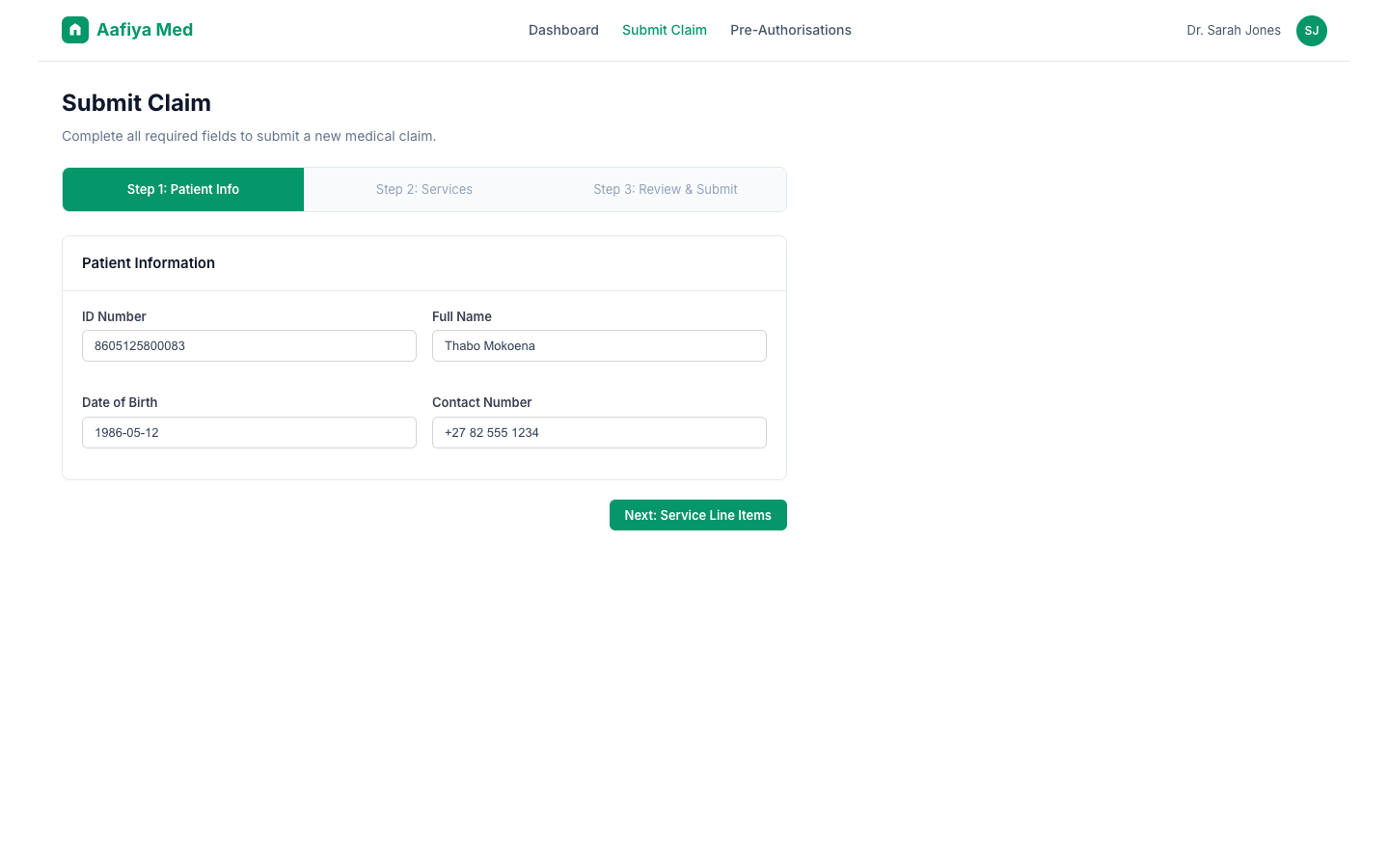
Navigate to Submit Claim from the top navigation bar.
Step 1: Patient Information
Fill in the patient's details: ID Number (South African ID), Full Name, Date of Birth, and Contact Number.
Step 2: Service Line Items
Add one or more service line items. Each line item includes: Description, Code (ICD-10, RPL, NAPPI), Quantity, and Unit Price in ZAR. Use the Add Line Item button to add additional services. Use the X button on any row to remove it.
Step 3: Review & Submit
The Total Amount is calculated automatically as you add line items. Review all entered information and click Submit Claim. After submission, you will be redirected to the claim details page where you can track its status.
Pre-Authorisation Requests
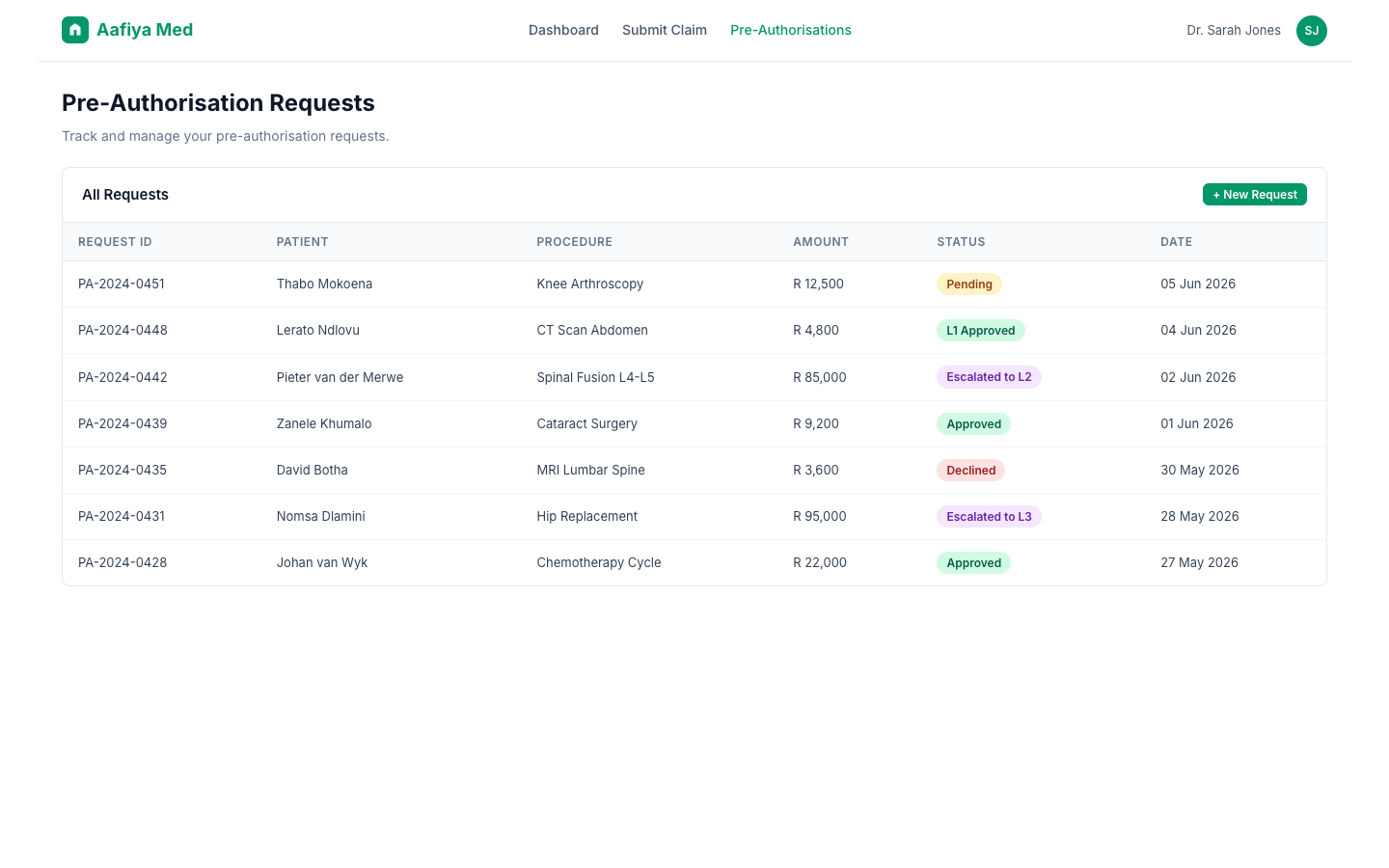
Navigate to Pre-Authorisations to view all your pre-auth requests.
The queue displays a table of all pre-authorisation requests with: Request ID, Patient name, Procedure/service requested, Amount, Status, and Date submitted.
Request Statuses
| Status | Meaning |
|---|---|
| Pending | Awaiting initial review (L1) |
| L1 Approved | Auto-approved by rules engine |
| Escalated to L2 | Requires clinical reviewer |
| Escalated to L3 | Requires senior clinical reviewer |
| Approved | Final approval granted |
| Declined | Request declined with reason |
Claim Details & Status
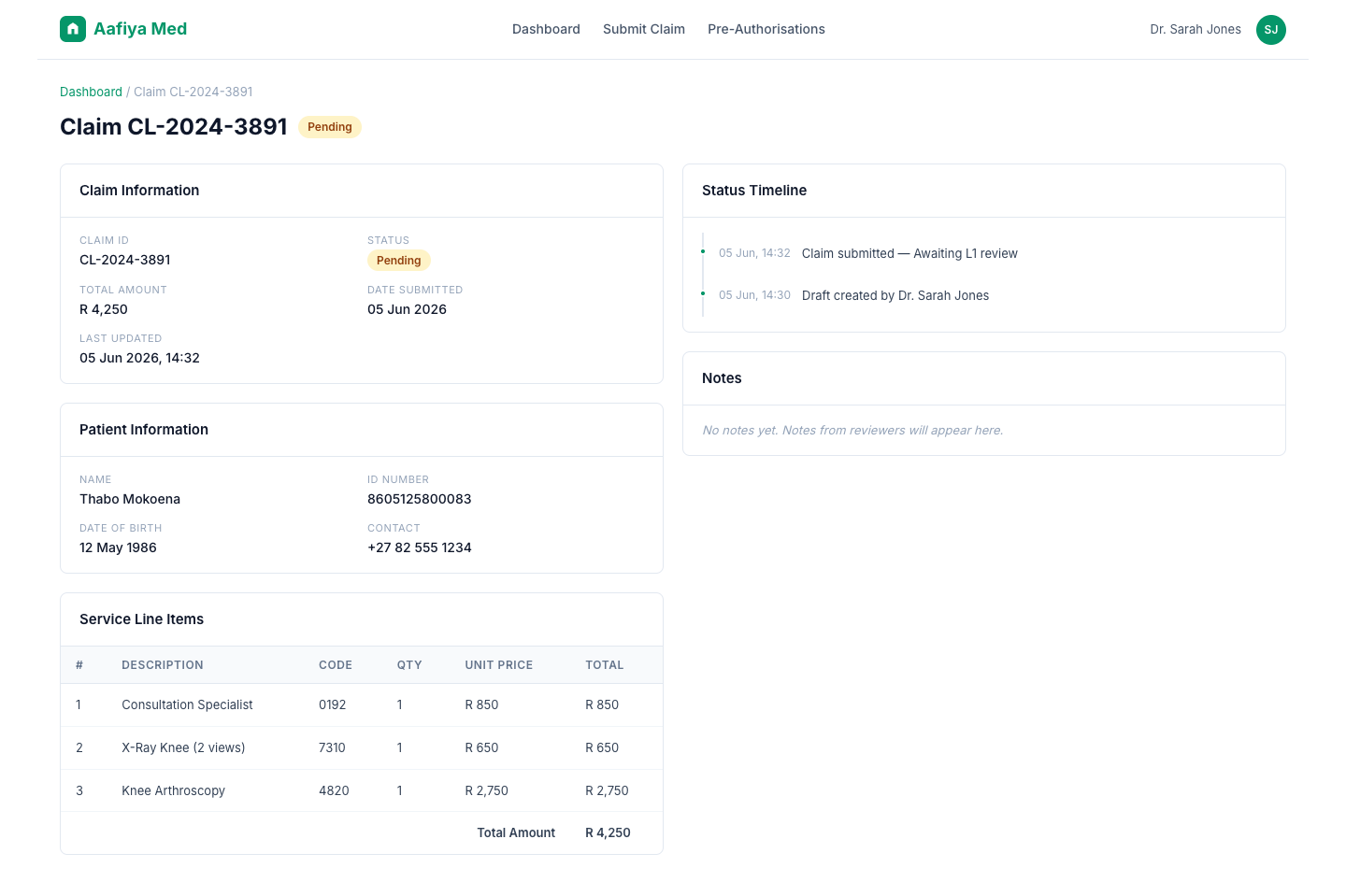
Click on any claim from the Dashboard or Pre-Authorisations list to view detailed information. The claim details page shows:
- Claim Information — ID, status, dates, amounts
- Patient Information — Name, ID number, contact details
- Service Line Items — Detailed breakdown of services billed
- Status History — Timeline of status changes with timestamps
- Notes — Any notes or communications from reviewers
Profile & Settings
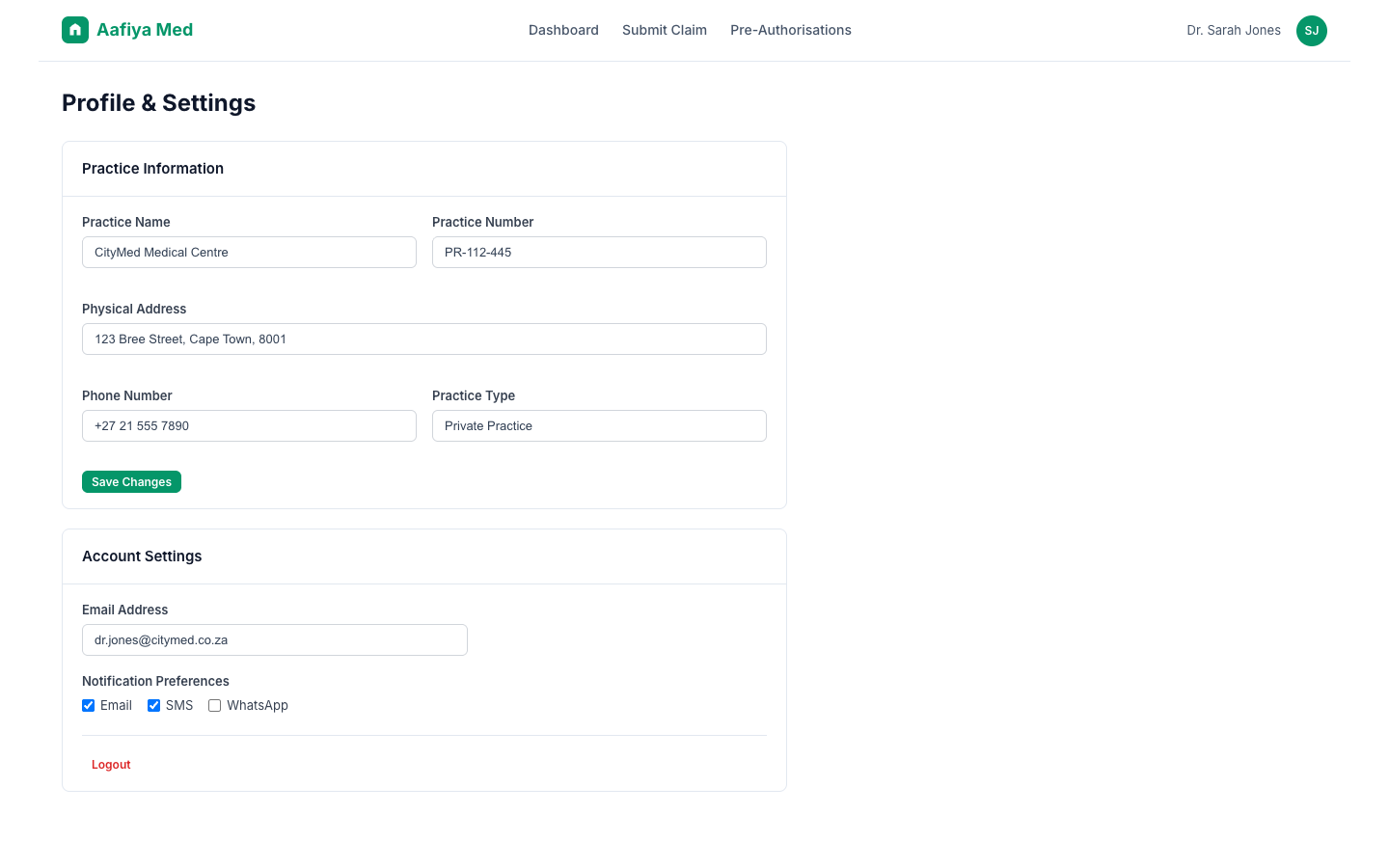
Click on your name or avatar in the top-right corner and select Profile or Settings. From here you can view and edit your practice information, update email, password, notification preferences, or sign out.
Troubleshooting
| Issue | Resolution |
|---|---|
| Cannot log in | Check your email and password. Use Forgot Password if needed. |
| Claim submission fails | Ensure all required fields are filled. Check patient ID number format. |
| Portal not loading | Check your internet connection. Try refreshing the page. |
| Status not updating | Claims are processed in real-time. Refresh the page to see latest status. |
Support
For technical support, contact the Aafiya support team:
- Email: support@aafiya.app
- Phone: +27-XXX-XXXX
- Operating hours: 08:00–17:00 SAST, Monday–Friday