Staff Portal User Guide
Aafiya Managed Care Platform — v1.2.0
Overview
The Staff Portal is the internal operations web application for case managers, clinical reviewers, and claims staff. Access it at http://localhost:3003 (development) or your organisation's production URL.
Available to: Authorised internal staff with assigned roles (L1 reviewer, L2 clinical reviewer, L3 senior reviewer, case manager, fraud analyst).
Getting Started
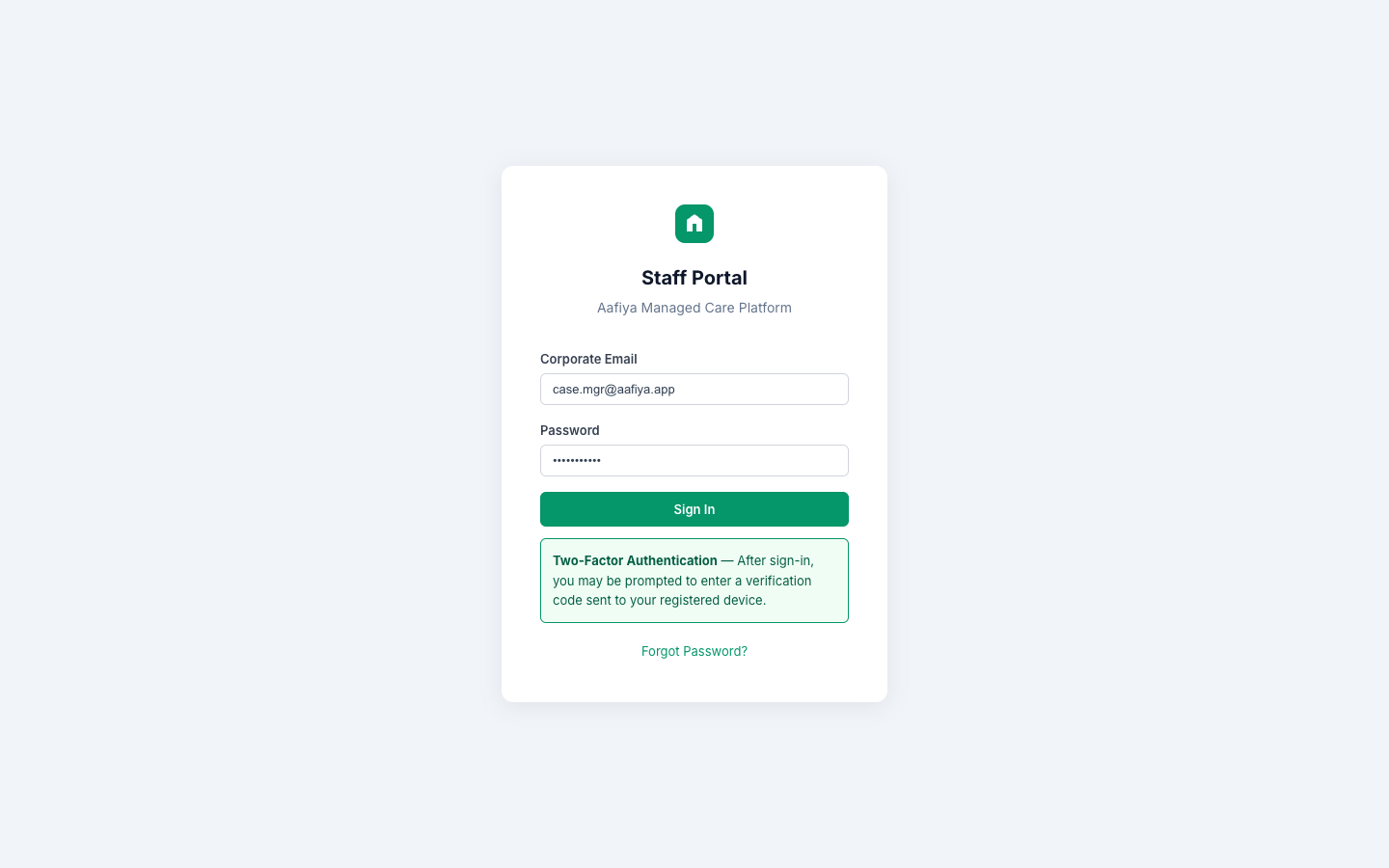
Login
- Navigate to the Staff Portal URL.
- Enter your corporate credentials (email and password).
- Click Sign In.
- Two-factor authentication may be required depending on your organisation's security policy.
Portal Layout
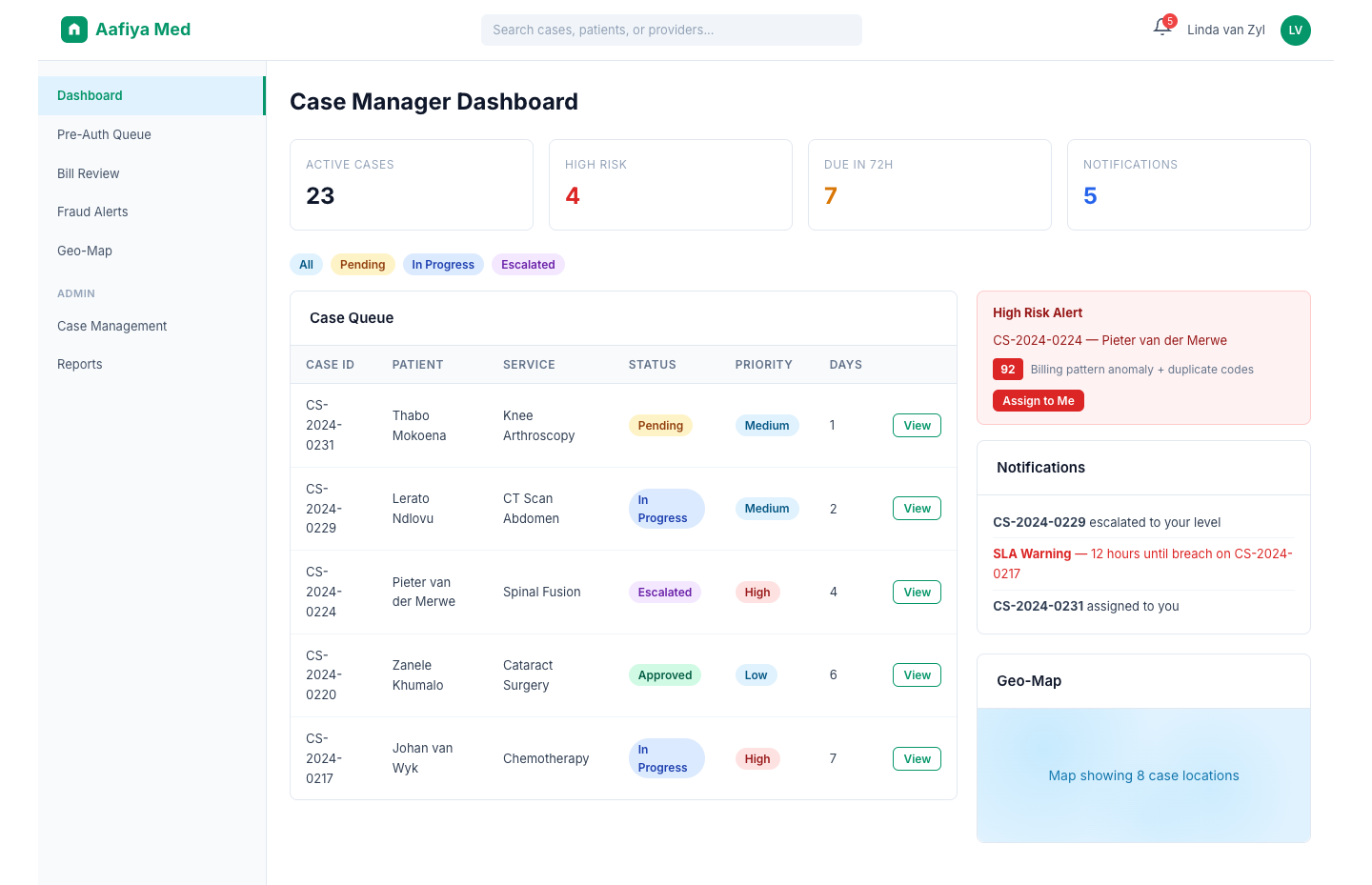
The staff portal uses an application shell layout: a left sidebar with navigation links to all work queues, a top bar with search, notifications, and profile menu, and a main content area that displays the active work queue or dashboard.
Case Manager Dashboard
The dashboard is the central hub for case managers. It provides:
| Metric | Description |
|---|---|
| Active Cases | Total cases currently assigned |
| High Risk | Cases flagged as high risk requiring immediate attention |
| Due in 72h | Cases approaching the 72-hour SLA deadline |
| Notifications | Total unread notifications |
Case Queue Table
A sortable table displaying cases with columns: Case ID, Patient name, Provider, Service type, Status, Priority, Days since submission, SLA deadline, and Actions (View, Assign, Escalate).
Panels
- Filter Sidebar — Filter by All, Pending, In Progress, Escalated
- Notification Panel — New assignments, escalations, SLA breach warnings
- Risk Alert Panel — High-risk cases with score, reason, and quick-assign
- Geo-Map Widget — Google Maps showing providers, hospitals, and case locations
Pre-Authorisation Review Queue
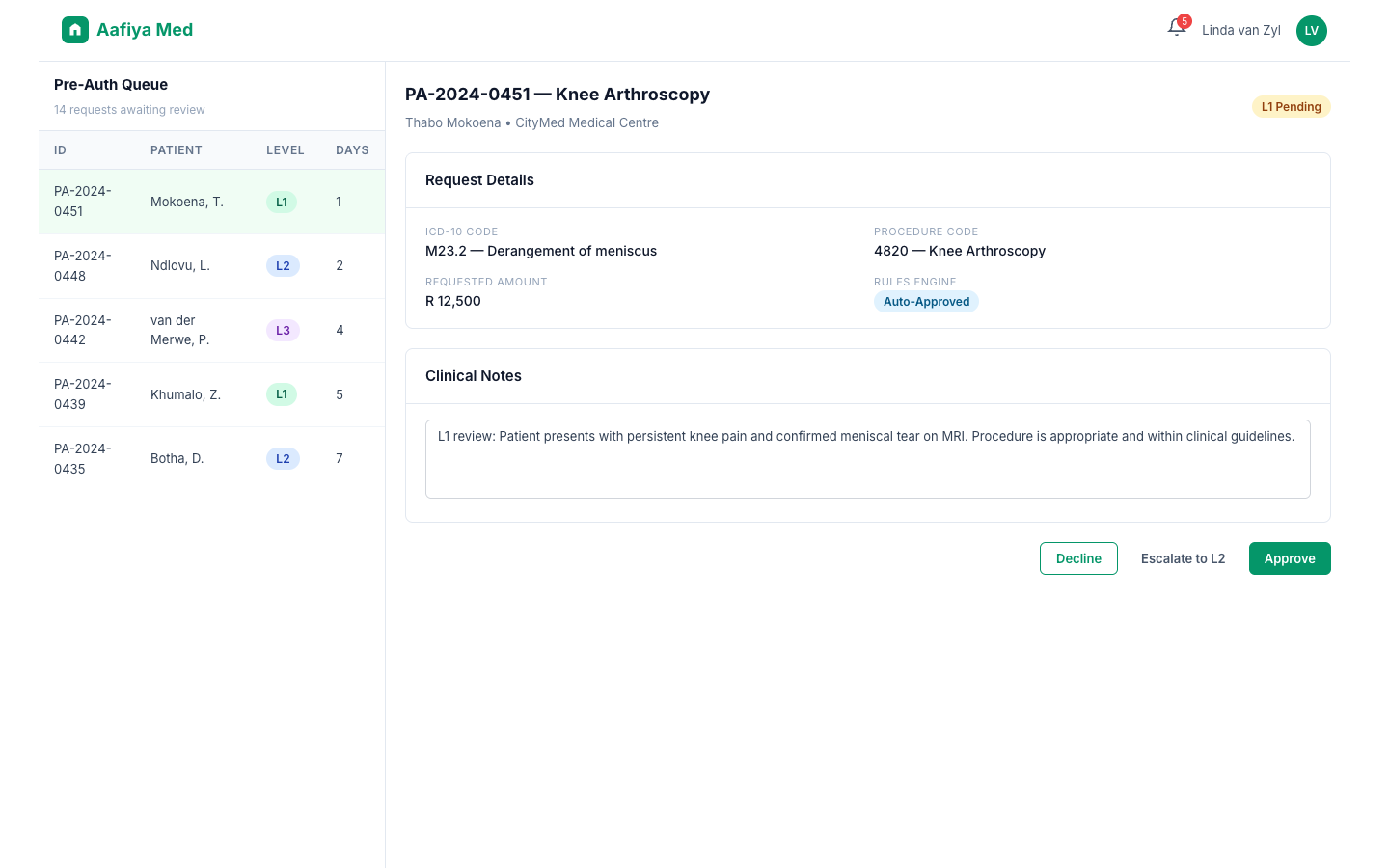
Navigate to Pre-Auth Queue from the sidebar. The queue shows all pre-authorisation requests requiring review, sorted by priority. Click on a request to open the review panel.
Reviewing a Request
- Review patient demographics, clinical details (ICD-10 codes, procedure codes), provider information, and the rules engine outcome.
- Take one of the following actions:
- Approve — Grant the authorisation
- Decline — Reject with a mandatory reason
- Escalate — Send to L2 or L3
- Add clinical notes to document your decision rationale.
All actions are recorded in the immutable audit trail.
Bill Review Queue
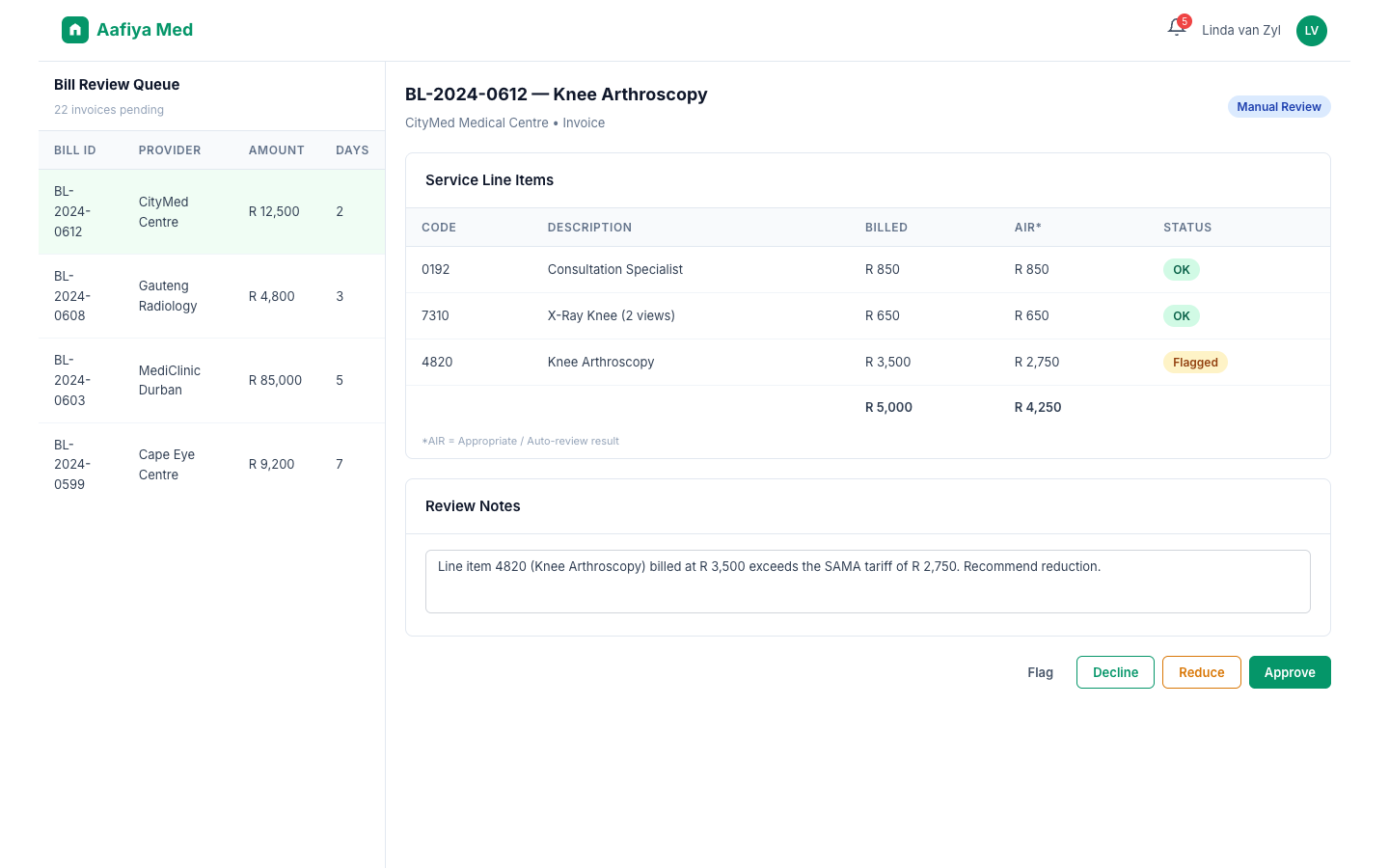
Navigate to Bill Review from the sidebar. Review submitted medical bills with details on service line items, tariff codes, auto-review results, and historical claim data.
Available Actions
- Approve — Pay the bill as submitted
- Reduce — Adjust line item amounts with justification
- Decline — Reject the bill entirely with reason
- Flag — Flag for fraud investigation
Fraud Alert Inbox
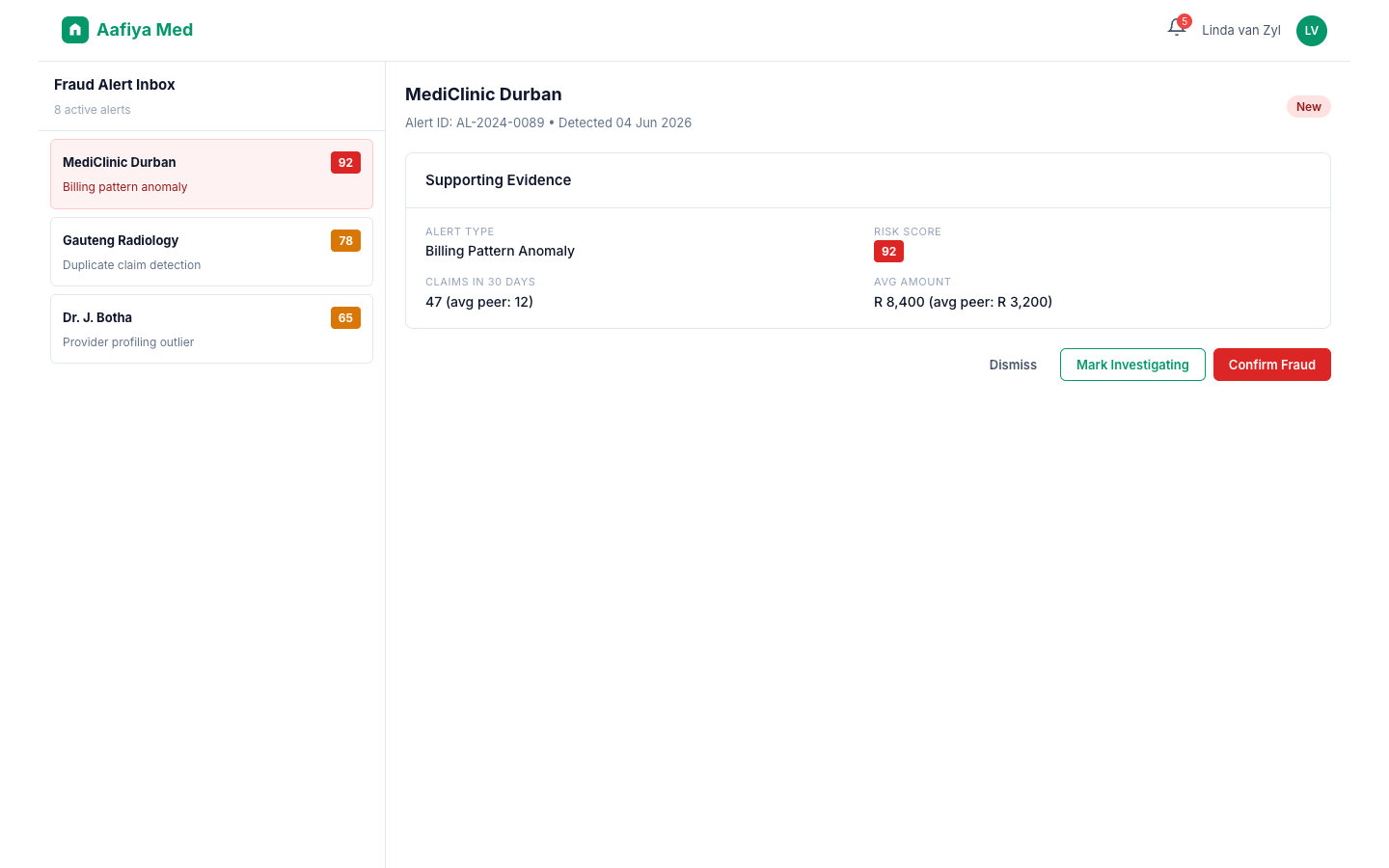
Navigate to Fraud Alerts from the sidebar. Each alert shows: Alert ID, Provider name, Risk score (0–100), Alert type (billing pattern, duplicate claim, provider profiling), Date detected, and Status (New, Investigating, Confirmed, Dismissed).
Investigating an Alert
Click on an alert to view supporting evidence including provider claims history, billing pattern analysis, comparison against peer providers, and patient history. Actions include Mark as Investigating, Confirm Fraud, and Dismiss (with reason).
Geo-Map Widget
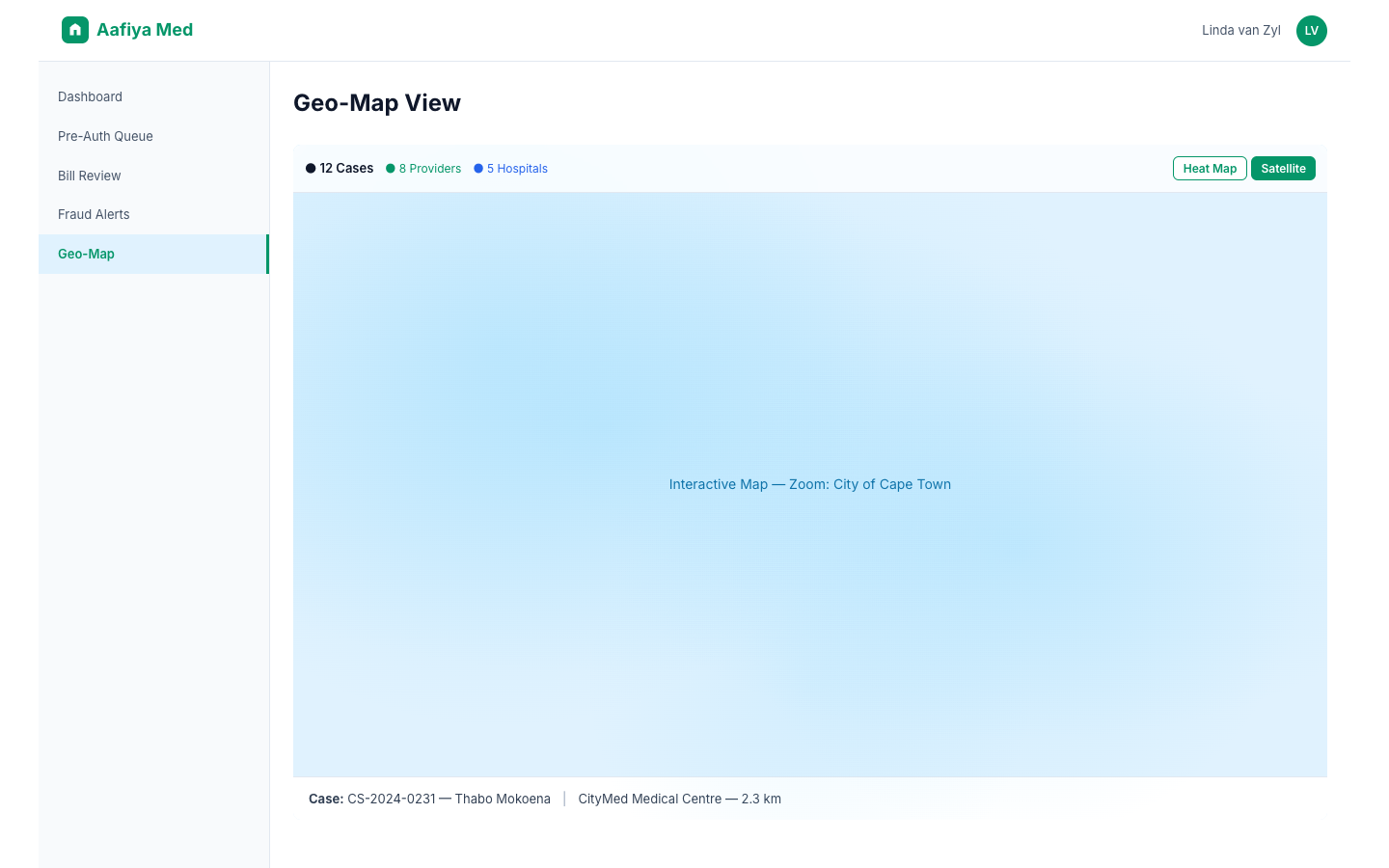
Available from the dashboard or as a standalone view, the integrated Google Maps widget shows provider and hospital locations with status colour-coded case pins, nearby facilities search, distance calculations, and a provider concentration heat map for fraud analysis.
Notifications & SLA Alerts
| Type | Trigger | Priority |
|---|---|---|
| New Case | Case assigned to you | Normal |
| Escalation | Case escalated to your level | High |
| SLA Warning | < 12 hours until SLA breach | Urgent |
| SLA Breach | SLA deadline missed | Critical |
| Fraud Alert | High-risk fraud detected | High |
SLA Policy
- All cases: initial decision within 72 hours of submission
- L2 escalated cases: within 48 hours
- L3 escalated cases: within 24 hours
- SLA breach notifications sent at 12 hours, 6 hours, and 1 hour before deadline
Troubleshooting
| Issue | Resolution |
|---|---|
| Cases not loading | Check network and refresh. If persistent, check Cloud SQL status. |
| Cannot approve/decline | Ensure you have the correct role/permissions for the action. |
| Geo-map not displaying | Google Maps API key may need refreshing. Contact your system administrator. |
| Notifications delayed | Notifications are near real-time. Refresh if you suspect delays. |
Support
- Email: it-support@aafiya.app
- Slack: #imms-operations (internal staff)
- Phone: +27-XXX-XXXX
- Escalation: Contact your Team Lead or Operations Manager